
How to use Tor Browser: download it, verify it, set it up safely
Here is how to use Tor Browser without getting a fake copy or leaking your IP on day one. Download it only from download.torproject.org, check the signature, install it, click Connect, choose a security level, and let it update itself. The whole thing takes about fifteen minutes the first time, and most of that is the signature check, which most guides skip.
The current stable version is Tor Browser 15.0.26, released on 21 October 2026. If a guide shows you an older number, the steps may still work, but its screenshots and bridge names probably don't match what you'll see.
Where to download it, and what to do if the site is blocked
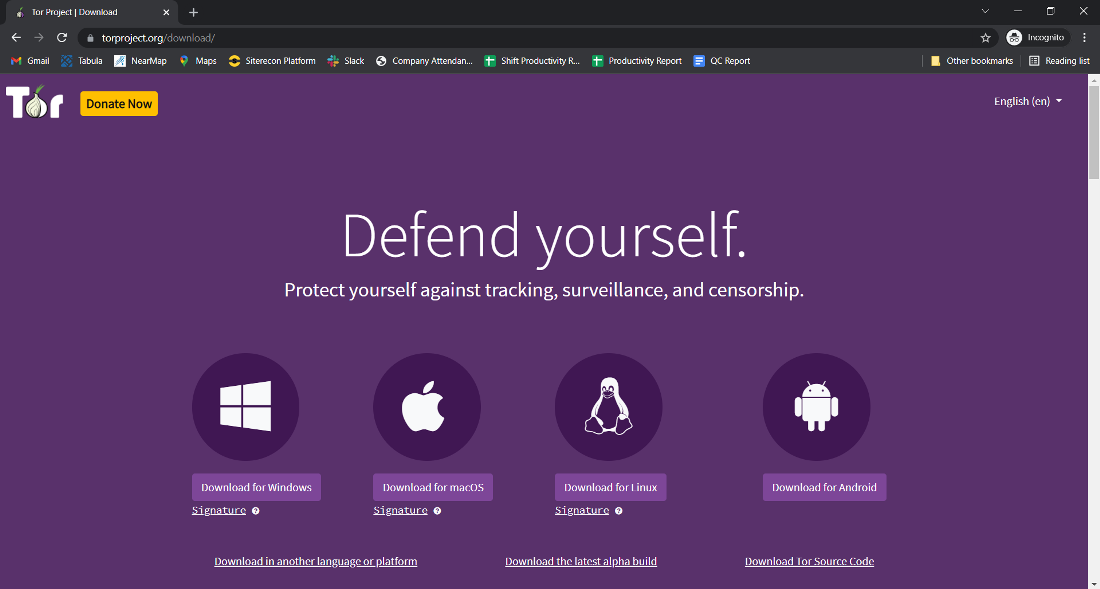
There is one safe place: the Tor Project's own download page. Tor's support pages say the connection to download.torproject.org is protected by HTTPS, which makes it much harder for someone to tamper with the file on the way to you. App stores full of "Tor browser" clones, download portals and links in forum posts are where fake copies come from. Don't use them.
The desktop page offers builds for Windows (32-bit and 64-bit), macOS (one universal build) and Linux (32-bit and 64-bit). Every file has a "Sig" link next to it. That second link is the signature, and you need it for the next step. The Android build is not on that page. torproject.org/download links to it, and the Tor Project also lists Google Play, F-Droid and GetTor as sources for it.
If torproject.org is blocked where you are, the Tor Project lists three alternatives:
- Official mirrors. EFF runs one at tor.eff.org and La Cebolla runs one at lacebolla.net.
- GetTor on Telegram. Message
@GetTor_Bot, tap Start, choose your language, then "Send me Tor Browser". It replies with the file and its signature. - GetTor by email. Send an email to
gettor@torproject.orgwith one word in the body:windows,osx,linuxorandroid. The reply contains download links, the signature, the signing key's fingerprint and a checksum.
A copy that came from a mirror, Dropbox or Google Drive is exactly the kind you should verify. GetTor sends the signature for that reason.
How to verify the signature on Windows, macOS and Linux
The signature proves the file was built and signed by the Tor Browser team and hasn't been changed since. HTTPS only protects the download on its way to you. The signature also catches a mirror that was compromised or a copy someone handed you.
Every download has a matching .asc file with the same name. Right-click the "Sig" link and choose "Save link as", and put it in the same Downloads folder as the browser file.
1. Install GnuPG
- Windows: install Gpg4win, then use the Command Prompt (
cmd.exe). - macOS: install GPGTools, then use Terminal.
- Linux: GnuPG is almost certainly installed already. Open a terminal.
2. Get the Tor Browser signing key
The key belongs to "Tor Browser Developers (signing key)" and its fingerprint is EF6E 286D DA85 EA2A 4BA7 DE68 4E2C 6E87 9329 8290. Tor's instructions fetch it like this, on every operating system:
gpg --auto-key-locate nodefault,wkd --locate-keys torbrowser@torproject.org
The output should include a line saying the key was imported, the full fingerprint above, and Tor Browser Developers (signing key) <torbrowser@torproject.org>. The expiry dates in your output may differ from Tor's example, and that's normal. Next, save the key to a small keyring file in the folder you're working in:
gpg --output ./tor.keyring --export 0xEF6E286DDA85EA2A4BA7DE684E2C6E8793298290
If tor.keyring doesn't appear after this, stop. Tor's own page is blunt about it: you can't continue until you've worked out why. The usual cause is a network that blocks the key lookup. In that case, download the same key from keys.openpgp.org and import it with gpg --import.
3. Check the file
These commands use the 15.0.26 file names from the download page. Change the version number to match whatever you downloaded. On Windows, run it from your user folder, which is where the Command Prompt opens:
gpgv --keyring .\tor.keyring Downloads\tor-browser-windows-x86_64-portable-15.0.26.exe.asc Downloads\tor-browser-windows-x86_64-portable-15.0.26.exe
macOS:
gpgv --keyring ./tor.keyring ~/Downloads/tor-browser-macos-15.0.26.dmg.asc ~/Downloads/tor-browser-macos-15.0.26.dmg
Linux:
gpgv --keyring ./tor.keyring ~/Downloads/tor-browser-linux-x86_64-15.0.26.tar.xz.asc ~/Downloads/tor-browser-linux-x86_64-15.0.26.tar.xz
The only result that counts is a line containing this:
gpgv: Good signature from "Tor Browser Developers (signing key) <torbrowser@torproject.org>"
"No such file or directory" means a typo or a wrong file name. Tor notes that its own examples use placeholder names, and most people trip on exactly that. Anything that says BAD signature means the file is not the one Tor signed. Delete it and download it again from a different source.
The date on the signature will be the day that build was signed, not today. That's expected, so don't let it worry you.
How to install it on Windows, macOS, Linux and Android
- Windows 10 or 11
- Double-click the verified
.exeand go through the wizard. By default it installs into your Desktop or Downloads folder and puts a shortcut on the Desktop. Note the folder it uses, because you'll need it if you ever update by hand. - macOS 10.15 or later
- Double-click the verified
.dmgand follow the installer. macOS may ask you to approve a third-party app under System Settings, in the Security section. That's normal for software from outside the App Store, and you've already checked the signature. - Linux
- Extract the archive with
tar -xf, go into the folder and run./start-tor-browser.desktop. If it refuses to run,chmod +x start-tor-browser.desktopfixes it../start-tor-browser.desktop --register-appadds it to your application menu. 32-bit Linux support ends with Tor Browser 16.0, so move to a 64-bit system now if you're still on one. - Android 5.0 or newer
- Install "Tor Browser for Android" from Google Play, or from F-Droid after adding the Guardian Project repository. The Tor Project also offers it on its website and through GetTor. If you don't know your phone's processor type, use a store rather than picking an APK yourself.
- ChromeOS
- There's no desktop build. You can run the Android app, but the Tor Project hasn't audited it on ChromeOS and can't promise every privacy feature works there.
Is there a Tor Browser for iPhone?
No. The Tor Project's own answer is "There is no Tor Browser for iOS." It points iPhone users to Onion Browser, an open-source app that routes traffic over Tor and is made by a developer who works closely with the project.
The catch is Apple's rule that every iOS browser must use WebKit. Tor says that requirement stops Onion Browser from having the same privacy protections as Tor Browser. Onion Browser is fine for reading the news or reaching an onion site from your phone. If being identified would actually hurt you, do it on a computer with the real Tor Browser.
The first launch, and what Connection Assist does
Tor Browser opens on a "Connect to Tor" screen with two choices: Connect, or Configure Connection. On most networks, Connect is all you need. A progress bar runs, and a few seconds later you're on the Tor Browser start page.
There's also a toggle called "Always connect automatically". With it on, the browser reconnects with your saved settings every time you open it. Leave it off for now if you might need to change your connection settings later.
Connection Assist is the part that helps when Tor is blocked. If the connection fails or the progress bar stalls, it offers to choose a bridge for you based on your location. If it can't tell where you are, pick your country from the list and click "Try a Bridge". The Android app does the same thing behind a "Try a bridge" button.
Most people skip one step: click the circuit icon next to the address bar once you're on a site. It shows the relays carrying your connection, and you can ask for a new circuit for that site from there. Seeing the three relays listed by name and country shows you what Tor is doing better than any explanation. Our Tor explainer covers what each of those relays knows about you.
What Standard, Safer and Safest actually block
| Level | What it changes | What you'll notice |
|---|---|---|
| Standard (the default) | Nothing is switched off. All browser and site features are on. | Sites behave as they do in Firefox, just slower. |
| Safer | JavaScript is off on non-HTTPS sites, some fonts and math symbols are disabled, and audio and video become click-to-play. | Ordinary HTTPS sites mostly work. Old HTTP-only sites and embedded video need a click or break. |
| Safest | JavaScript is off on every site by default, and some fonts, icons, math symbols and images are disabled. Audio and video are click-to-play. | Text pages and most onion services work. Anything built on JavaScript, such as webmail, maps, logins and many shops, breaks or half-loads. |
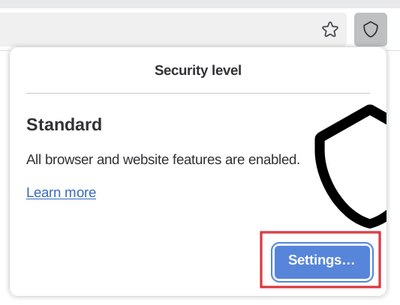
On desktop, open the shield icon next to the address bar and click Settings. That takes you to the Security Level choice under Privacy & Security. On Android, tap the three-dot menu, then Privacy and security, then Security Level, and finally "Save and restart". A level change needs a restart to take full effect.
Which security level you should use
Tor's guidance is to weigh security against how much breakage you can live with. Here's how that works out in practice.
- Standard
- You're using Tor so your ISP and the sites you visit don't see who you are: reading the news, researching something sensitive, getting around a block. EFF calls Standard "fine for everyday privacy protection."
- Safer
- You want most of the protection without losing ordinary HTTPS sites. It's a sensible permanent setting if Safest is too annoying for you.
- Safest (what most people mean by "Safest mode")
- You're opening onion sites you don't know, you're a journalist or activist someone is actively looking for, or a single mistake would be expensive. EFF's reasoning is that Safest protects you from well-funded attackers who use new, unknown bugs in the features it switches off. The real cases where Tor users were unmasked through their browser are on our page on whether Tor can be traced, and they're why we'd never visit an unknown onion site on Standard.
The level isn't a one-time decision. A workable habit is to stay on Safest and drop to Standard only for one site you trust and need working, then switch back. Restart each time you change it.
Should you add extensions or a VPN?
No extensions. Not even an ad blocker. The download page itself says "Don't install any extra plugins or add-ons", and Tor's safety page explains that add-ons can bypass Tor or harm your anonymity. There's a quieter reason too. Tor Browser tries to make every user look the same, and an extension makes you look different from everyone else. EFF adds that you don't need ad or tracker blockers, because the browser already ships with its own protections.
The VPN question is longer, and most of what you've read about it was written by people selling VPNs. The Tor Project's own line, on the same download page, is "Don't use a separate VPN with Tor." If what you actually want is to hide from your ISP that you use Tor, a bridge does that without adding a company that sees all your traffic. Our Tor vs VPN comparison goes through who sees what in each setup.
Why Tor Browser won't connect, and how to fix it
When Tor Browser is not connecting, look at what Connection Assist says first. "Offline" means your normal internet connection is down. "Not Connected" means you're online but Tor can't get through.
For "Not Connected", work through Tor's own quick fixes in this order. They're listed on the troubleshooting page, and the first one fixes more cases than you'd expect.
- Check your computer's clock and time zone. If the system clock is wrong, Tor can't connect at all.
- Make sure no other copy of Tor Browser or Tor is already running. If in doubt, restart the computer.
- Check that your antivirus isn't blocking Tor, and try with the firewall off for a moment.
- If it worked yesterday and not today, the machine may have been hibernating. Reboot.
- Still stuck? Delete the Tor Browser folder completely and reinstall it. Don't install over the old copy.
If none of that helps, your network is probably blocking Tor, and you need a bridge. Open the ≡ menu, then Settings, then Connection, and under "Bridges" click "Select a Built-In Bridge". The current built-in options are obfs4, Snowflake, WebTunnel and meek.
That list also shows how fast Tor guides go out of date. EFF's guide, last reviewed in January 2025, lists "Meek-azure" and doesn't mention WebTunnel, while Tor's current page lists WebTunnel as one of the four. Which bridge works in which country is a whole topic of its own. Our bridges guide has it country by country.
If you're filing a bug or asking for help, get the log first. It's under ≡, then Settings, then Connection, then "View Logs…". On Linux you can also start the browser with ./start-tor-browser.desktop --verbose and watch the log in the terminal.
How to keep it updated
An old Tor Browser is the most dangerous one. The Tor Project warns that an outdated version can leave you exposed to flaws that deanonymize you. Updates arrive often. 15.0.26, for example, came out to block compromised intermediate certificates from the eMudhra certificate authority.
- Desktop, the normal way: when the ≡ menu shows a green circle with an up arrow, open the menu and choose "Update available – restart now". It downloads, installs and restarts itself.
- Desktop, by hand: close the browser, delete its folder, then download, verify and install the new version as if it were the first time.
- Android: update through Google Play or F-Droid, or install a newer APK over the old one.
To check which version you're on, open ≡, then Settings, and scroll to "Tor Browser Updates".
What never to do inside Tor Browser
Tor hides where you are. It does nothing about what you tell people. Most of the ways Tor users get identified happen above the network, and Tor's own safety page lists the main ones:
- Don't log in as yourself. Once you sign in to your real account or type your name, email or phone number into a form, that site knows who you are. Tor can't change that.
- Don't torrent over Tor. Torrent clients have been seen ignoring proxy settings and sending your real IP in tracker requests. That exposes your other Tor traffic as well.
- Don't open downloaded documents while you're online. A DOC or PDF can pull in internet resources when it opens, and the program that opens it doesn't use Tor, so it reveals your real IP. Use the browser's built-in PDF viewer, an offline machine, or Dangerzone. And when Tor Browser warns you before handing a file to another app, don't ignore it.
- Don't assume other apps are covered. Only what you do inside Tor Browser goes over Tor. Your mail client, chat apps and your normal browser on the same computer don't.
- Don't send anything sensitive over plain HTTP. Tor encrypts traffic up to the exit relay. After that it's up to the site, so check for https or the onion icon before you type anything that matters.
If you're installing Tor Browser to visit onion sites, our guide to getting on the dark web starts where this page ends. It covers where real onion addresses come from and how to tell a clone from the real site.
Version, download options and instructions checked against the Tor Project's pages on .